Improvements
What we've shipped,
and what prompted it.
We're a small Science Olympiad family building OlyPrep. This page is the running list of what we've shipped — some of it built because a parent or a student told us something was off. When that happens we read it, we fix it, and we say so here.
§01 / What we've shipped
- October 2026Continue with GoogleSetting up an account meant an email, a ten-character password and a code from your inbox, and we could see that many families who opened the signup page never finished it. Now there is one button: Continue with Google. It is first on the signup page and on the login page; the email path is still there underneath. If you already have an OlyPrep account on a Gmail address, Google signs you into that account — your kid’s topics and history come with it.
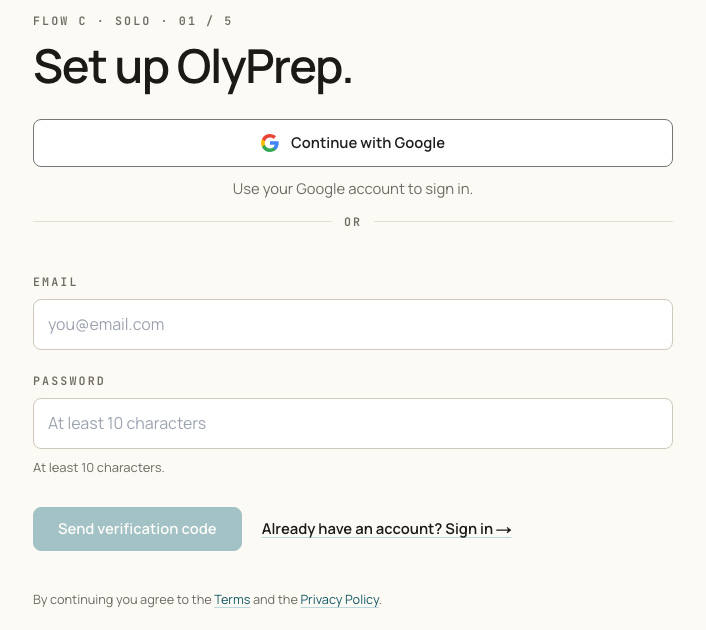 One button first; the email path stays underneath.SignupAccount
 - October 2026Signing in on one device no longer signs out the othersA kid on the tablet and a parent on the laptop share one account, and signing in on one used to end the session on the other — the next time the kid opened the app they were back at the login page. That is fixed. Each device keeps its own sign-in, and a family can be signed in on several at once.AccountFamily
- October 2026The coach teaches from the lessons, and never quizzesAsk Coach now answers from the published lessons for the topic — the same facts your kid reads in the Lessons tab, so the coach and the lessons agree. It also stopped quizzing: a kid who asks the coach for a quiz is pointed to Practice instead, because practice is what fills the report card and the coach is there to explain. On a topic with no lessons yet, the coach answers as before.
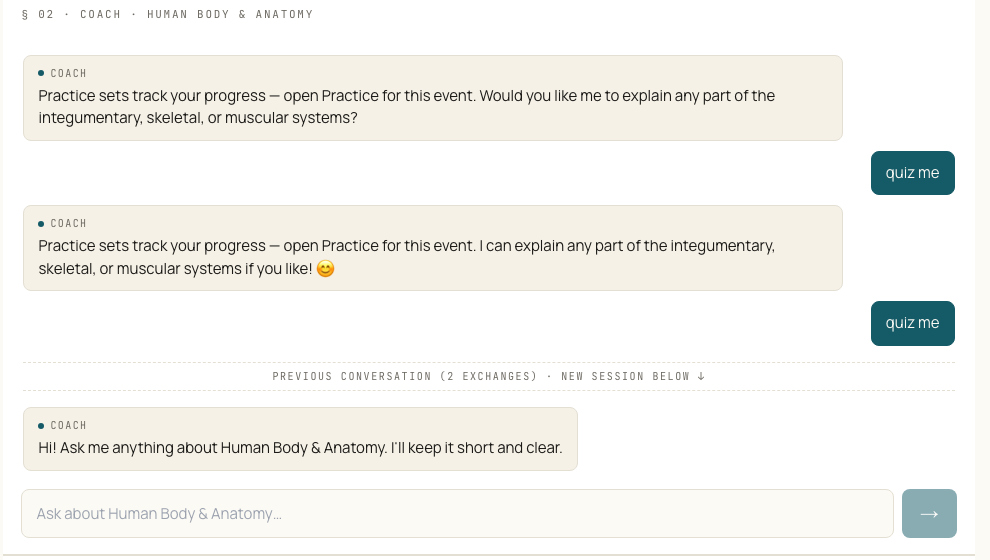 Ask for a quiz and the coach points you to Practice.Ask CoachLessons
 - October 2026A guided journey through each lessonReading a lesson is one way to learn it. The journey, in the Ask Coach tab, is the other: the coach walks your kid through the lesson a step at a time — a short teach, a check question with three choices, a scenario, and a recap that becomes a study note. A wrong pick gets one re-explanation and then moves on; nothing loops. Every journey is written from the lesson it belongs to and checked before it is published. Free accounts get two a month; Premium is unlimited.
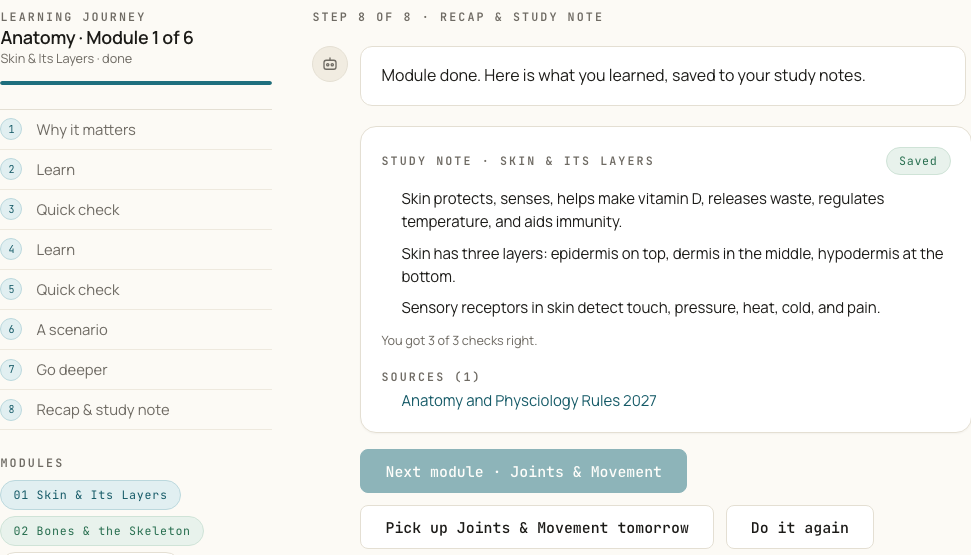 Eight steps, then the recap is saved as a study note with its source.Ask CoachLessonsFree
 - October 2026Home: one door per topic, and two short how-to videosEach topic card on Home now carries the report card’s next step as a line of text and one button, Open topic, which lands on the topic’s Overview. The card used to have two doors, and we watched a student skip straight to Practice from the one meant for the lessons — so one door, one landing. The Getting-started card is now permanent and holds two short videos: how a kid works through a topic, and how a parent reads the report card and the plans.
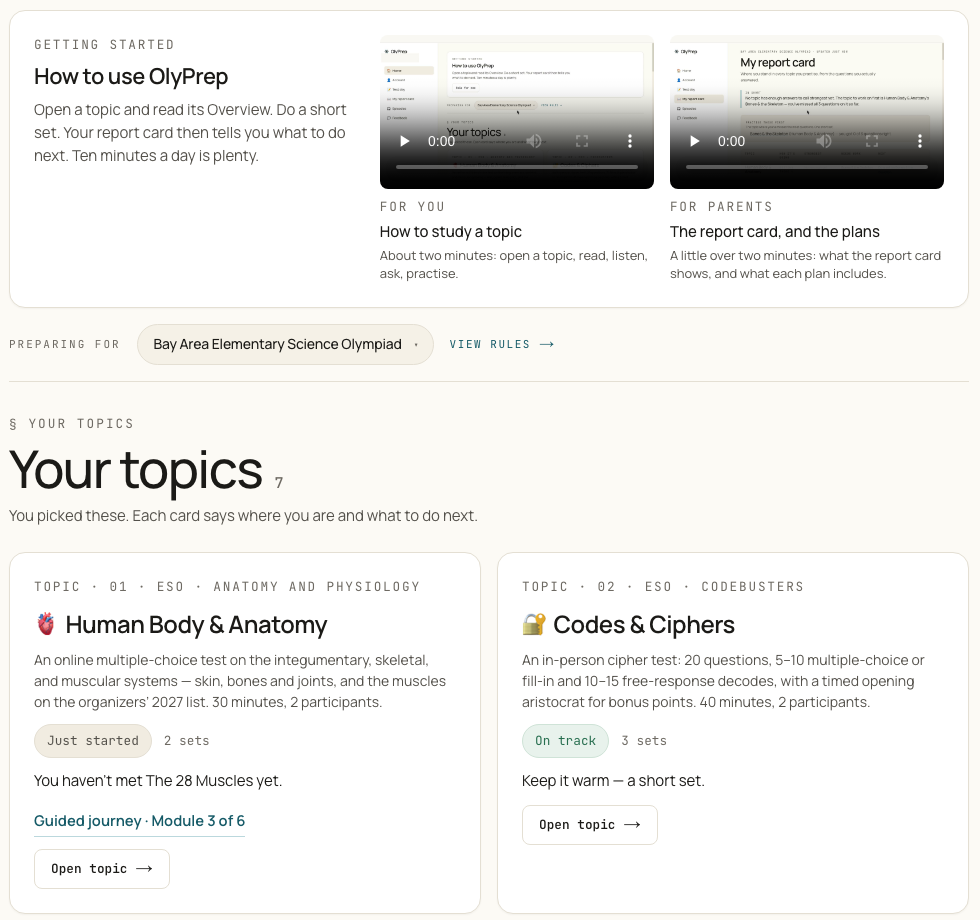 Each card: where your kid is, what to do next, one door.HomeGetting started
 - September 2026Written lessons, with pictures and referencesEvery topic page is now five tabs — Overview, Lessons, Listen, Ask Coach, Practice — and Lessons is the new one: twenty-eight written lessons across five Bay Area events, one per part of what the rules ask (a lab procedure gets practice, not a lesson), with licensed pictures under the sections and a references table at the end so a parent can see where a fact came from. Each lesson is checked against the event rules by several independent readers before it is published, and lessons are free on every plan. The in-app screens now carry the same design as the site, dark mode included.
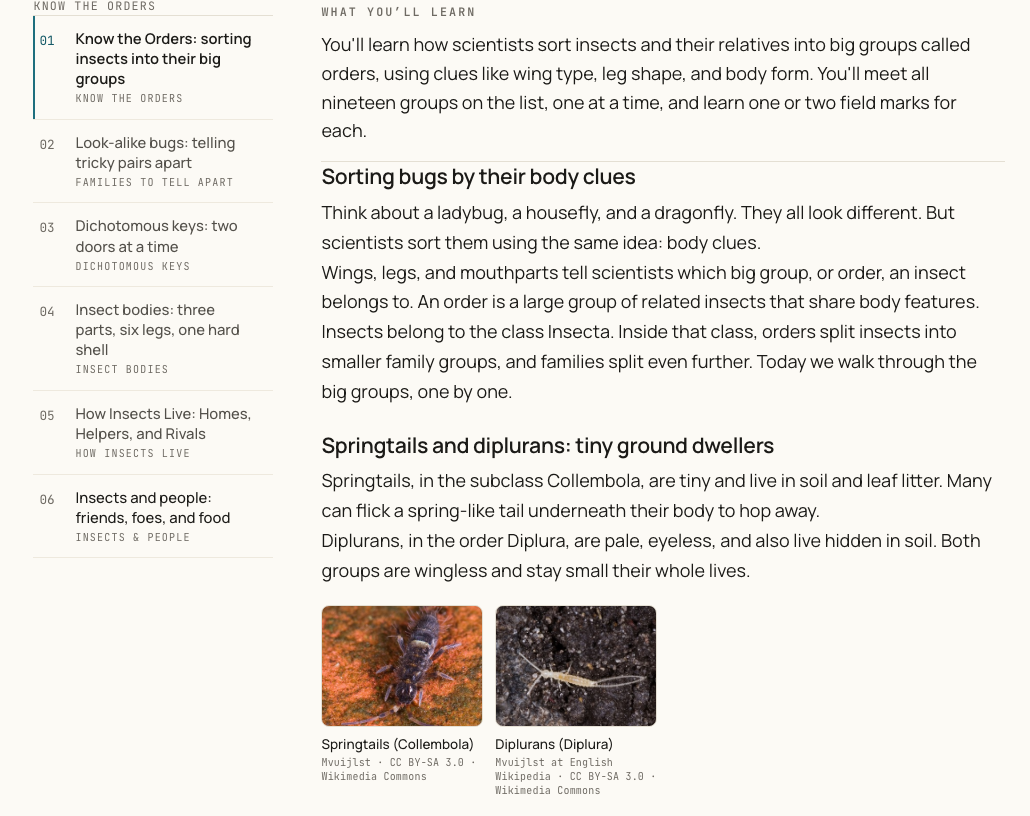 Every picture carries its credit; every lesson ends in a references table.LessonsBay Area ESOFree
 - September 2026Audio lessons for every Bay Area eventThere is a new Episodes tab beside My report card. It holds short audio lessons, about five minutes each, read from the event rules — one for each thing an event asks your kid to know. They are included on every plan, Free accounts too, and they do not spend a credit. Your kid’s report card links straight to the episode for whatever they are weakest at. Bay Area ESO events have them today; MESO’s are being recorded.
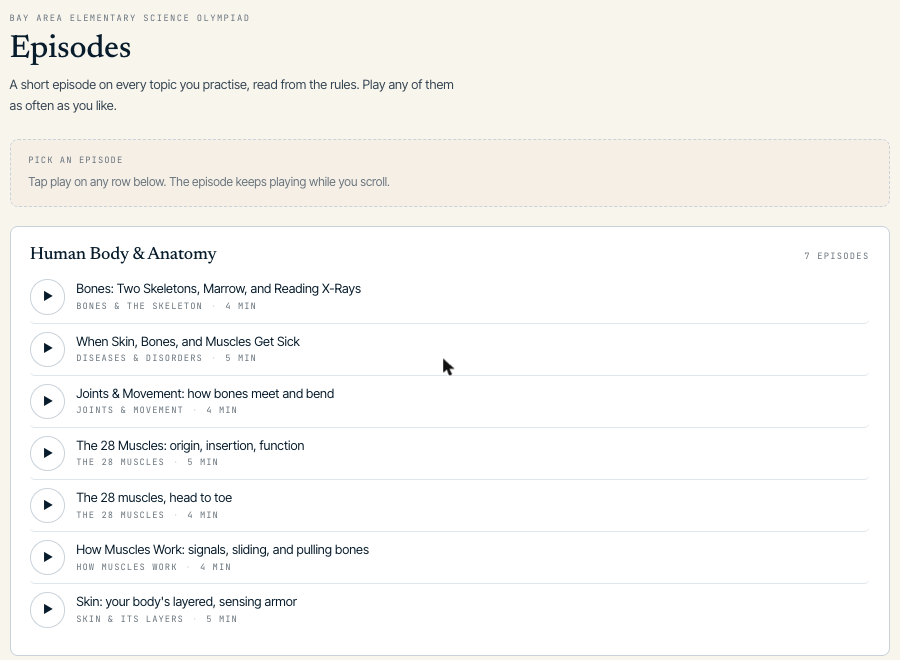 One section per event, one episode per thing the rules ask your kid to know.ListenBay Area ESOFree
 - September 2026Your topics are remembered per olympiadIf your kid preps for more than one olympiad, switching between them used to mean picking topics again. Now each olympiad remembers its own picks — switch to Bay Area ESO and the Bay Area topics come back, switch to MESO and MESO’s do. The switcher is on the account page, and there is a shortcut on the home screen.
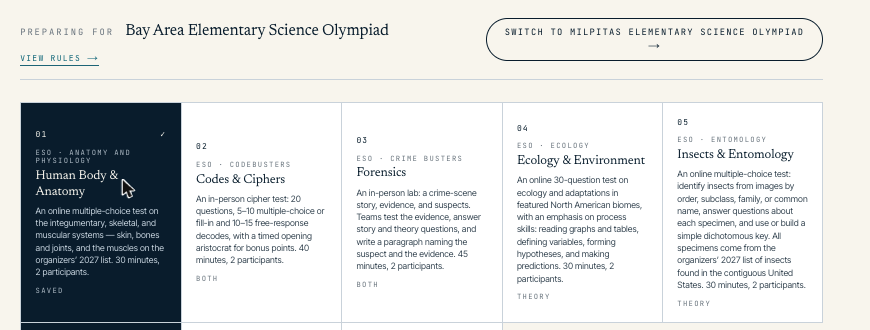 Switching olympiads brings that olympiad’s own saved topics back.AccountTopics
 - September 2026Report a bug, suggest an idea, without leaving the appThe feedback button has two more doors. Report a bug asks two questions and lets you attach a screenshot — we get the page, the device and the build with it, so we do not have to ask you for any of that. Suggest an idea takes one question. If we build your idea, you get a month of Premium free. Everything lands with a human.
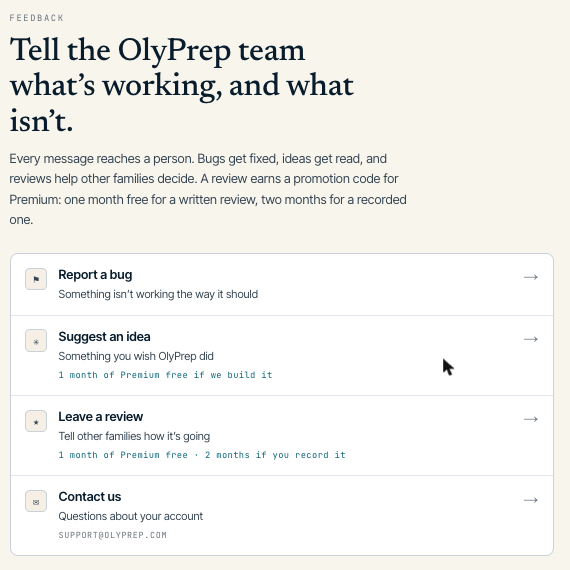 Four doors, all of them reaching a person.FeedbackSupport
 - September 2026A review earns a month of PremiumIf OlyPrep is working for your kid, we would rather other parents heard it from you than from us. Leave a written review and you get a month of Premium free; record a short one and you get two. The link is under Feedback in the app, and the code applies on the monthly plan at checkout.FeedbackPremium
- September 2026A Season Pass, for families who would rather pay oncePremium is now two ways to buy the same thing: $12.99 a month, or $49 for six months in one payment. The pass does not renew — it simply ends, and we email you before it does. A monthly subscriber can switch to it in place. When a pass ends, every topic your kid saved stays open on the Free plan; what changes is the monthly allowance.
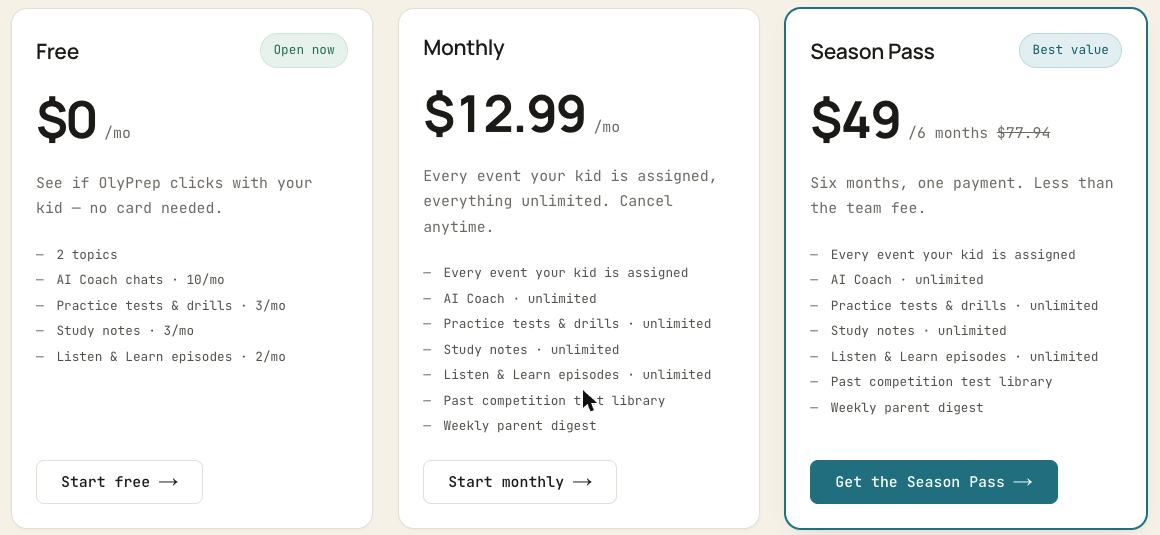 The same Premium, two ways to buy it.PlansBilling
 - September 2026My report cardEvery student now has a report card: how they are doing in each event, broken down by the specific things that event tests, with their own papers listed underneath oldest to newest so you can see whether a weak spot is moving. Each row has a door that says what it opens — a practice set on that exact subtopic, or the audio lesson for it. It is free on every plan, and it reads from the papers your kid has already sat.
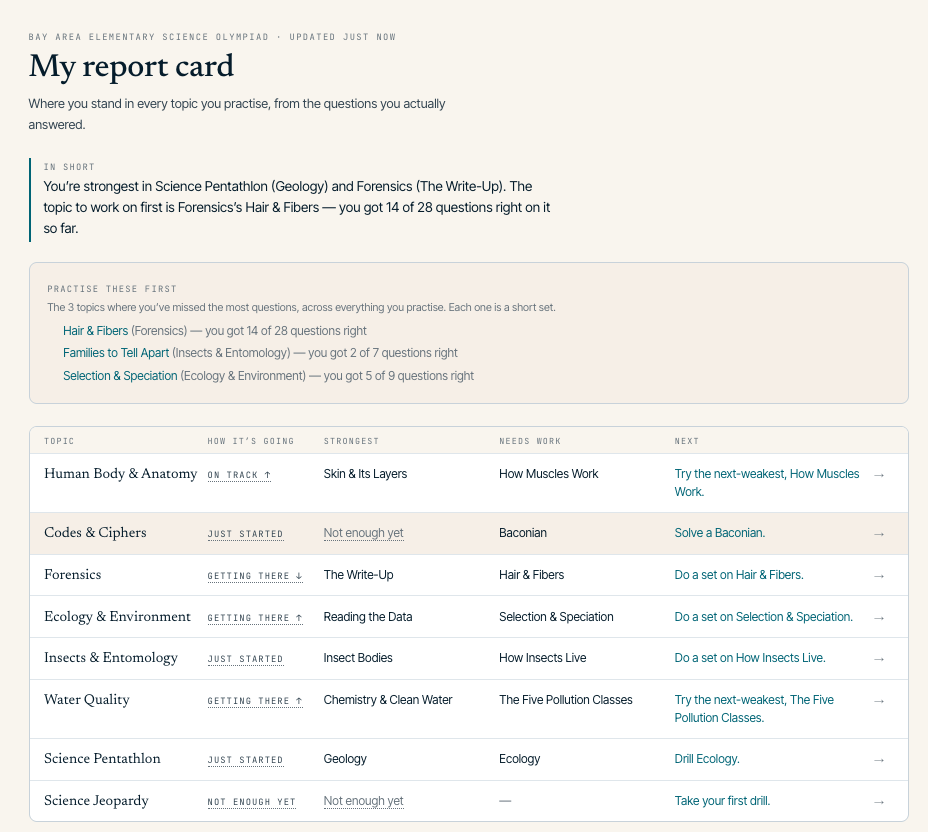 Every event, what is working, what is not, and one thing to do next.ProgressFree
 - September 2026Test day — the real paper, on the clockPractice sets are for learning. Test day is for finding out. Your kid sits the event’s actual paper — its real question count, its real clock, one submit, no going back — and gets it marked the way the rules mark it. The Crime Busters paper includes a written analysis graded against a rubric, the Codebusters paper scores in points with the timed bonus, and the picture events carry real photographs and charts. It is live for the seven Bay Area theory events.
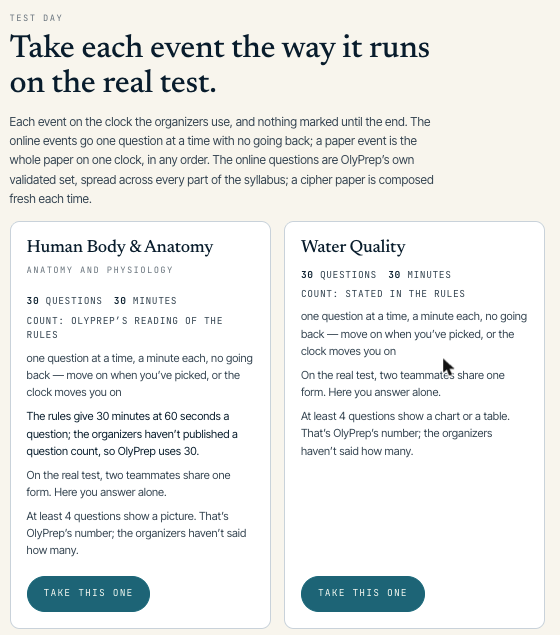 Each card says where its question count and clock come from.PracticeBay Area ESO
 - September 2026The Science Jeopardy boardScience Jeopardy’s second round is a board, so we built the board: five categories, five values, thirty seconds a clue, answers phrased as questions. A wrong or late answer subtracts its value, exactly as the event does it. The clues come from our own validated question bank, and the whole board is marked on the server.Science JeopardyBay Area ESO
- September 2026Bay Area Elementary Science Olympiad 2027, all eleven eventsOlyPrep now supports a second tournament: the Bay Area Elementary Science Olympiad, run by Science Gurus in Fremont. All eleven events are live — six prep spaces scoped to the 2027 rules, timed practice for Pentathlon and Science Jeopardy, and study guides for the three build events, included free and using no topic slot. Pick your tournament at signup and your kid’s workspace carries that slate. We are not affiliated with the organizers.
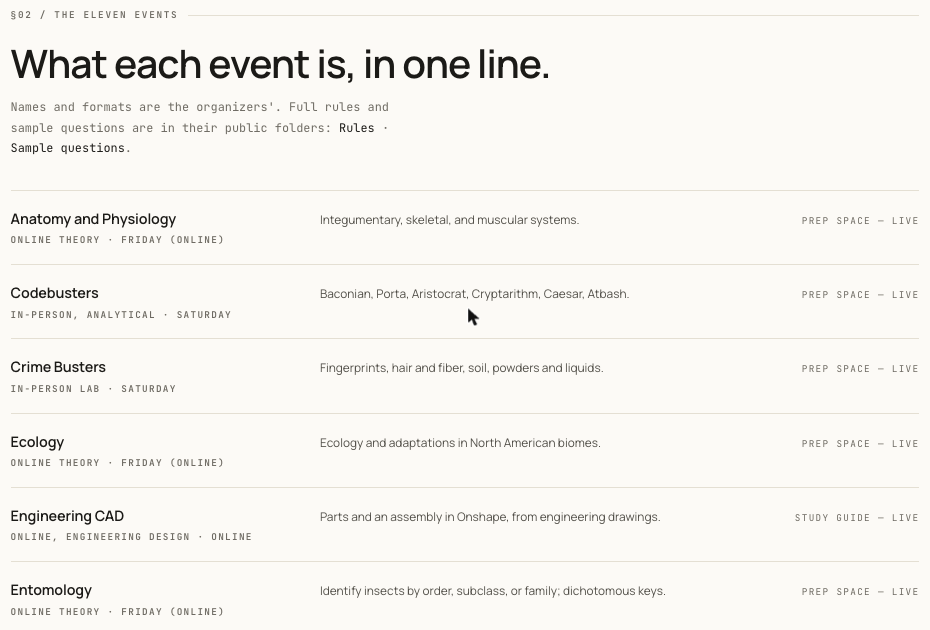 Every event, its format, and what is live for it.Bay Area ESONew olympiad
 - August 2026olyprep.com, redesignedWe rebuilt every public page of olyprep.com — the homepage, the Science Olympiad pages, the library, and this page included. The new design is calmer and easier to read, it has a dark mode (the toggle is in the nav), and every page now scores 100 on Lighthouse’s automated accessibility audit. Next up: we’ve published a page for the 2027 Bay Area Elementary Science Olympiad — we’re not affiliated with the organizers, but we’re building prep for it, and you can register your interest there today.DesignDark modeAccessibility
- June 2026Add a second topic after signupA parent told us they couldn’t add a second topic after signing up with just one — and a few families had ended up with none at all, leaving nothing to study. They were right. Our safeguard against reshuffling already-saved topics was accidentally locking everyone else out of their own empty slots too. We fixed it so any account can fill its empty topic slots right from the account page, and signup now gently suggests picking two — while still blocking the topic-swapping the lock was meant to prevent.SignupAccount
- May 2026Knights Templar cipher symbols, redrawnA 4th-grade student noticed our Knights Templar cipher was rendering the symbols as small crosses with text labels instead of the canonical wedge and chevron shapes. They were right. We rewrote the renderer to use the three parent shapes — Star, Cross, and Diamond — plus the X-saltire for N, and embedded the canonical reference grid directly in the Cipher Guide. Shipped five days after the feedback came in.
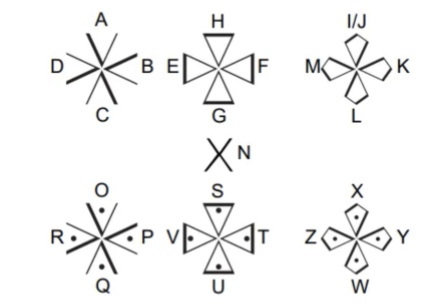 The canonical cipher grid now built into the Cipher Guide.CodebustersVisual fix
§02 / Tell us something
Spotted something? Got an idea?
Every improvement above started exactly this way — a family told us. Tell us what you spotted and how to reach you, and we'll take it from there.